

http://localhost:6575 once the VectorAI DB Docker container is running. No login is required for local deployments. See Docker setup if you need to start the container first.
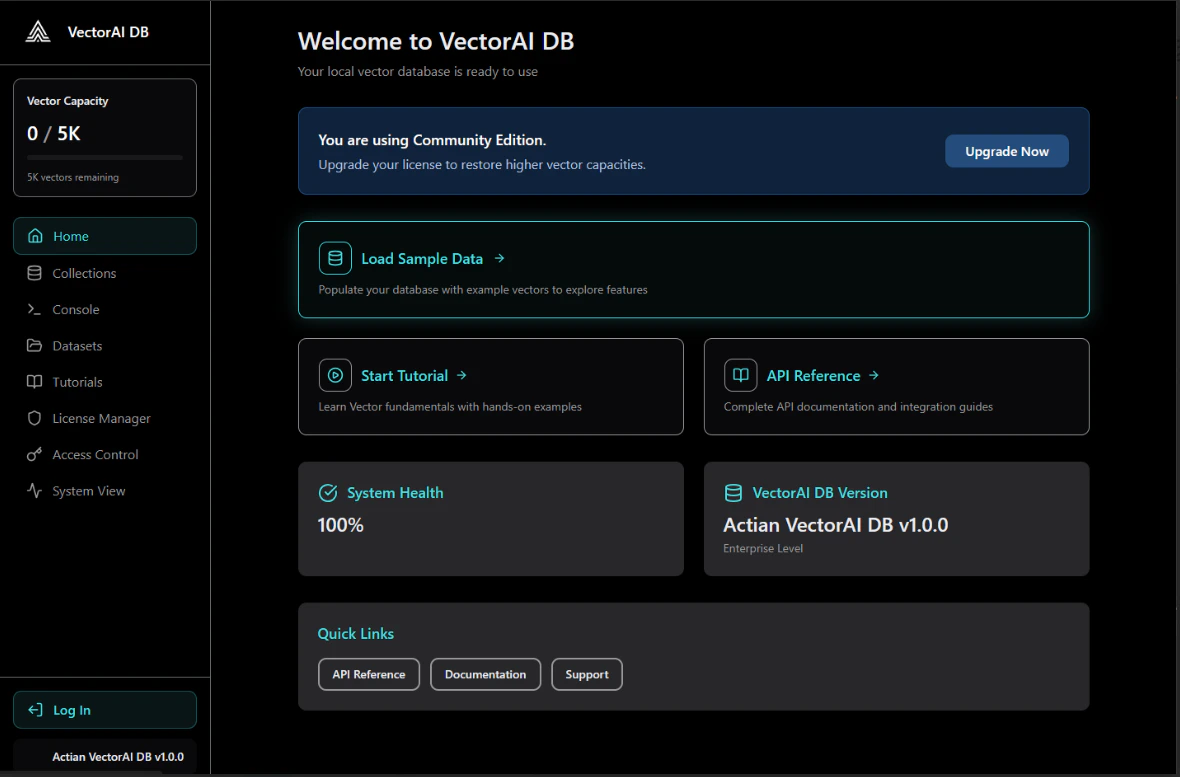
Dashboard sections
Console
The Console lets you run ad-hoc REST API requests, test queries, and inspect JSON responses alongside HTTP status codes, all from the browser.Collections
The Collections section gives you a visual overview of all collections in VectorAI DB.- View all existing collections and their configuration.
- Inspect vector count, dimension size, and distance metric for each collection.
- Browse individual vectors and their associated payloads.
- Run similarity searches against a collection using a vector or an existing record’s ID.
- Delete collections you no longer need.
License Manager
The License Manager lets you activate a license key to upgrade from Community mode (5,000 vector cap) to a licensed instance. See Activating a license for step-by-step instructions and headless activation via the API.Browsing vectors
Select any collection to open its detail view: a paginated table of stored vectors with their payload fields. Filter by payload values to locate specific entries.Running a search
1
Open a collection
Select the collection you want to search from the Collections list.
2
Go to the Search tab
Click the Search tab within the collection detail view.
3
Enter a query vector
Enter a JSON array representing your query vector in the input field.
4
Set search parameters
Configure
top_k to control how many results to return. Optionally apply payload filters to narrow results.5
Run the search
Click Search to execute. Results appear ranked by similarity score, with each result showing its ID, score, and payload.
Next steps
Python SDK
Install and configure the Python SDK.
REST API
Explore the full REST API reference.
Core concepts
Understand the data model, architecture, and how search works.
Troubleshooting
Resolve common issues with VectorAI DB.