> ## Documentation Index
> Fetch the complete documentation index at: https://docs.vectoraidb.actian.com/llms.txt
> Use this file to discover all available pages before exploring further.
# Windows
> Get VectorAI DB running on Windows using the installer wizard.
## Prerequisites
* Windows 10 or later (64-bit)
* 8 GB RAM (16 GB+ recommended)
* 10 GB disk space (100 GB+ recommended)
## Install VectorAI DB
Download the VectorAI DB installer (`ActianVectorAIDB-Setup.exe`) from the [Actian downloads page](https://www.actian.com/databases/vectorai-db/) and double-click it to launch the setup wizard.
The wizard opens to the license agreement screen.
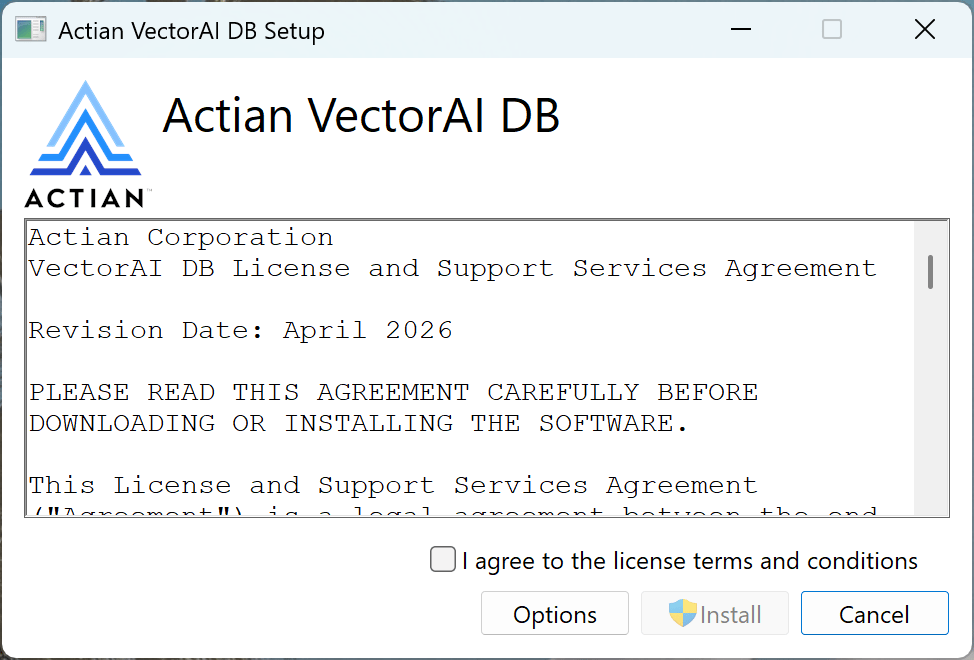 Read the **VectorAI DB License and Support Services Agreement**, then check **I agree to the license terms and conditions**.
The **Install** button becomes active once you accept.
Click **Options** to open the install location dialog. Enter a path directly or click **Browse** to select a folder, then click **OK** to confirm.
Read the **VectorAI DB License and Support Services Agreement**, then check **I agree to the license terms and conditions**.
The **Install** button becomes active once you accept.
Click **Options** to open the install location dialog. Enter a path directly or click **Browse** to select a folder, then click **OK** to confirm.
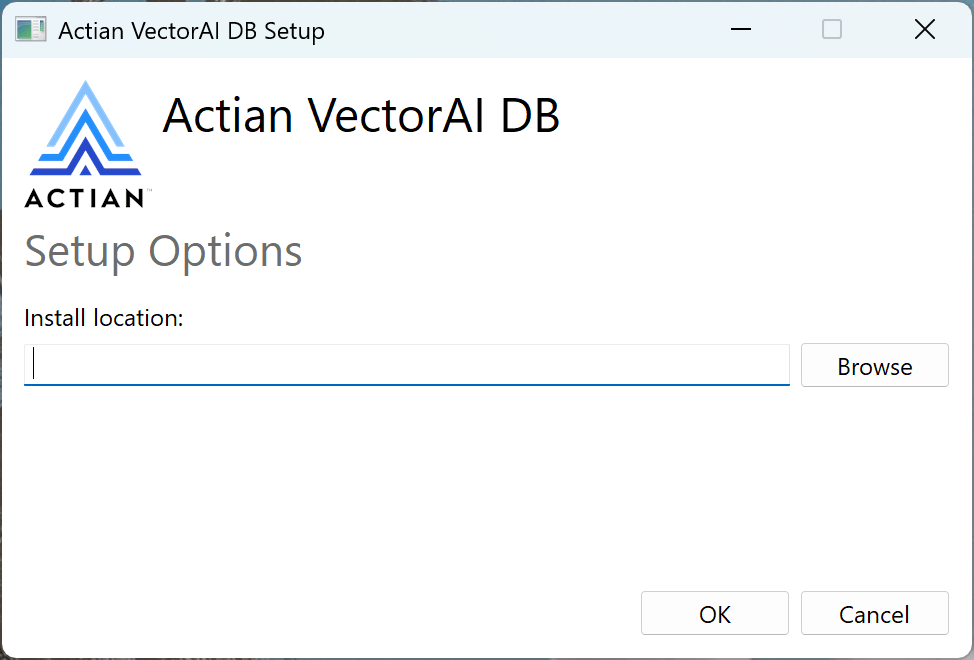 If you skip this step, the installer uses the default path:
```
C:\Program Files\Actian\VectorAI DB\
```
Collections, logs, and auth data are always written to:
```
C:\ProgramData\Actian\VectorAI DB\
```
Click **Install**. The wizard copies files and registers both Windows services.
When setup finishes, the wizard shows **Installation Successfully Completed**.
If you skip this step, the installer uses the default path:
```
C:\Program Files\Actian\VectorAI DB\
```
Collections, logs, and auth data are always written to:
```
C:\ProgramData\Actian\VectorAI DB\
```
Click **Install**. The wizard copies files and registers both Windows services.
When setup finishes, the wizard shows **Installation Successfully Completed**.
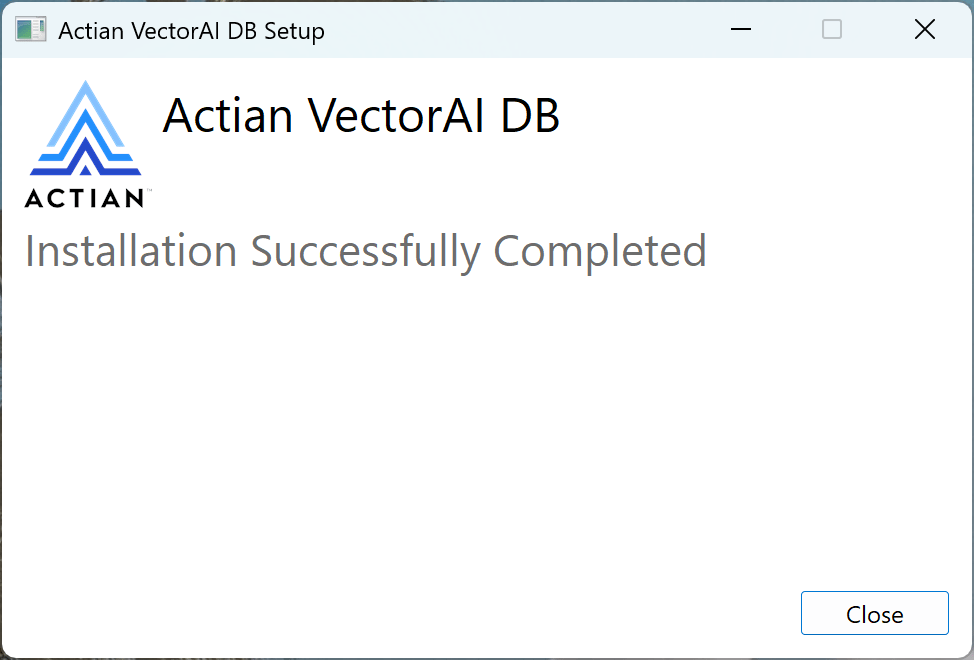 Click **Close** to exit the wizard. Both services start automatically and no reboot is required.
The REST API is available at `localhost:6573`. The Local UI is available at `localhost:6575`.
## Verify installation
The verify commands below use PowerShell. Run them in a PowerShell terminal after installation.
```powershell theme={null}
Get-Service ActianVectorAIDB
Get-Service ActianVectorAIDBDashboard
Invoke-RestMethod http://localhost:6573/
Invoke-RestMethod http://localhost:6573/collections
Start-Process "http://localhost:6575"
```
## Troubleshooting
| Issue | Solution |
| ---------------------------------------------- | ------------------------------------------------------------------------------------------------------------------ |
| Services not running after install | Open **Services** (`services.msc`), locate `ActianVectorAIDB` and `ActianVectorAIDBDashboard`, and click **Start** |
| Port 6573 / 6574 / 6575 already in use | Find the process: `netstat -ano \| findstr :6573`, then stop it or change the port |
| `Invoke-RestMethod` returns a connection error | Wait 10-15 seconds after install for the services to initialize, then retry |
| Engine logs | `C:\ProgramData\Actian\VectorAI DB\logs\actian_vectorai_server.log` |
### Check service status
```powershell theme={null}
Get-Service ActianVectorAIDB | Select-Object Name, Status, StartType
Get-Service ActianVectorAIDBDashboard | Select-Object Name, Status, StartType
Restart-Service ActianVectorAIDB
```
## Uninstall
Go to **Settings > Apps > Installed apps**, find **Actian VectorAI DB**, and select **Uninstall**.
The uninstaller removes the application binaries and stops the services. Data in `C:\ProgramData\Actian\VectorAI DB\` is not removed.
## Next steps
Create your first collection, insert vectors, and run a search.
Understand the data model, architecture, and how search works.
Install and configure the Python SDK.
Click **Close** to exit the wizard. Both services start automatically and no reboot is required.
The REST API is available at `localhost:6573`. The Local UI is available at `localhost:6575`.
## Verify installation
The verify commands below use PowerShell. Run them in a PowerShell terminal after installation.
```powershell theme={null}
Get-Service ActianVectorAIDB
Get-Service ActianVectorAIDBDashboard
Invoke-RestMethod http://localhost:6573/
Invoke-RestMethod http://localhost:6573/collections
Start-Process "http://localhost:6575"
```
## Troubleshooting
| Issue | Solution |
| ---------------------------------------------- | ------------------------------------------------------------------------------------------------------------------ |
| Services not running after install | Open **Services** (`services.msc`), locate `ActianVectorAIDB` and `ActianVectorAIDBDashboard`, and click **Start** |
| Port 6573 / 6574 / 6575 already in use | Find the process: `netstat -ano \| findstr :6573`, then stop it or change the port |
| `Invoke-RestMethod` returns a connection error | Wait 10-15 seconds after install for the services to initialize, then retry |
| Engine logs | `C:\ProgramData\Actian\VectorAI DB\logs\actian_vectorai_server.log` |
### Check service status
```powershell theme={null}
Get-Service ActianVectorAIDB | Select-Object Name, Status, StartType
Get-Service ActianVectorAIDBDashboard | Select-Object Name, Status, StartType
Restart-Service ActianVectorAIDB
```
## Uninstall
Go to **Settings > Apps > Installed apps**, find **Actian VectorAI DB**, and select **Uninstall**.
The uninstaller removes the application binaries and stops the services. Data in `C:\ProgramData\Actian\VectorAI DB\` is not removed.
## Next steps
Create your first collection, insert vectors, and run a search.
Understand the data model, architecture, and how search works.
Install and configure the Python SDK.